> ## Documentation Index
> Fetch the complete documentation index at: https://java.agentscope.io/llms.txt
> Use this file to discover all available pages before exploring further.
# Create console Issues and assign tasks
This is preview documentation. The official release is not yet available.
An Issue holds a work objective, owner, discussion, execution records and deliverables. It remains traceable across failed executions and service restarts. Use Issues for work that must be completed and accepted, such as a report or a bug fix.
## Interface tour
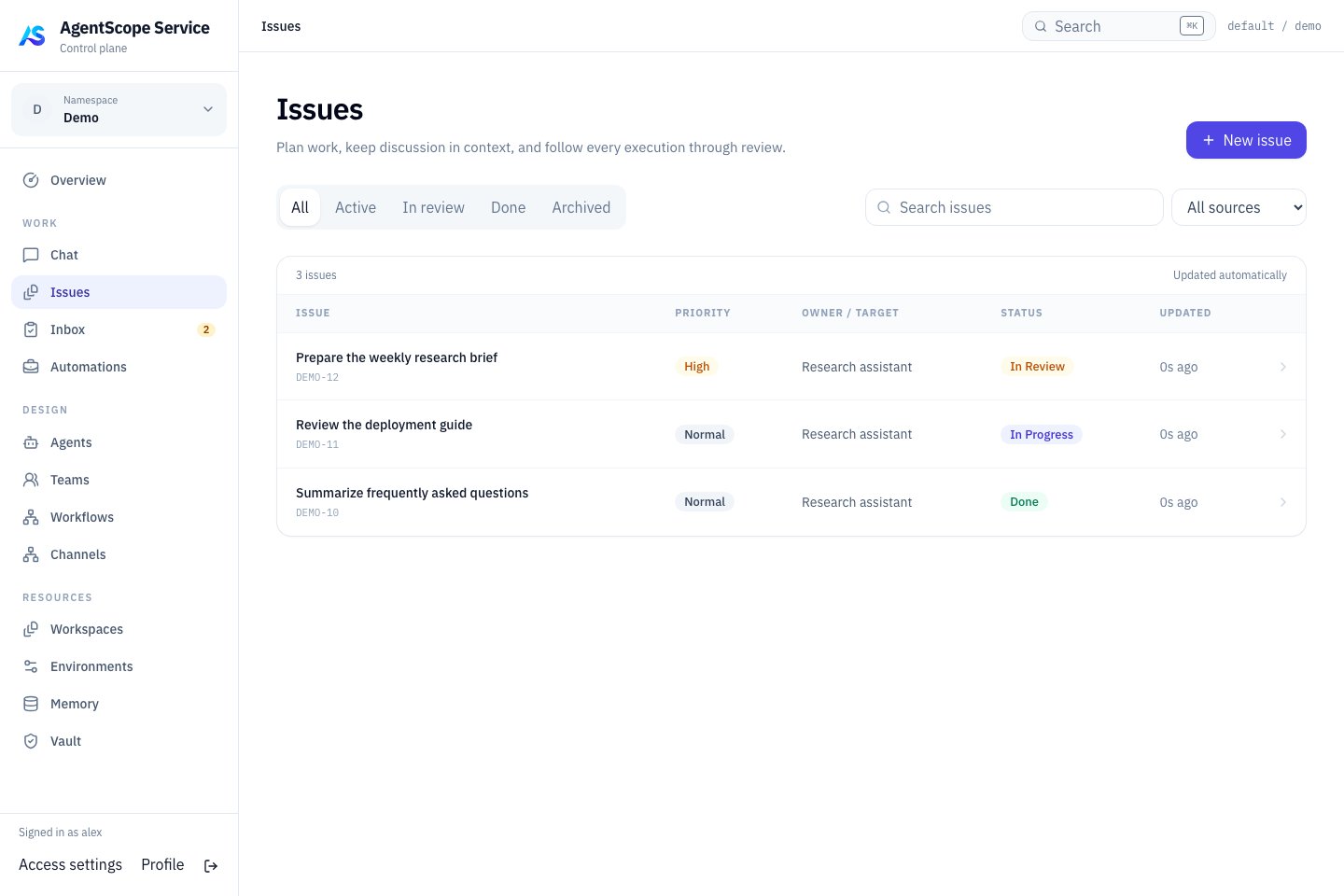 Filter with **Active**, **In review** or **Done**, then compare priority, owner and status in each row. Open an issue title for its discussion and result. Start a new piece of work with **New issue** at the top right.
## Create work
Open **WORK → Issues → New issue**. Write an outcome-oriented title, such as “Analyze sample logs and deliver an error report.” Include input locations, boundaries and expected deliverables in the description.
Choose **Sharing**: Private for yourself, or Namespace members for the shared scope. You can add individual collaborators later. Sharing includes execution records and attachments, so review it before adding material.
Choose an Agent, Team or Human owner, or a Workflow execution target. A Workflow starts its latest published revision and records the actual revision used; publish it first if no revision exists. Ownership can be assigned later. After creation, check **Executions** rather than assuming that a saved Issue means an Agent is already running.
## Define acceptance
Add Acceptance criteria in the detail view, for example:
```text theme={null}
- Read only sample.log; do not access production logs.
- Deliver report.md with error categories, counts and three line-numbered examples.
- Mark unconfirmed causes as hypotheses.
```
Priority communicates importance; Due date communicates a deadline. Neither replaces the task description. Split large work into child Issues with their own owners and deliverables, then review the combined outcome in the parent.
## Discuss and exchange files
Add information in comments, reply to threads or mention an Agent that should participate. Check routing outcomes and execution records to see whether a message caused follow-up work. Resolving a comment thread does not accept the Issue.
Use Artifacts for files and deliverables. Subscribe to updates without changing access permissions. The Source area identifies the originating Chat, Channel or other entry point.
## Read the status
| State | What to check |
| - | - |
| Backlog / Todo | Complete requirements and assign responsibility |
| In progress | Review current execution, discussion and artifacts |
| Blocked | Identify missing information, authorization or dependencies |
| In review | Compare results and child Issues with acceptance criteria |
| Done | Work has completed according to its completion policy |
| Cancelled | Work was cancelled; retain its reason for reference |
A successful Run is not itself Issue acceptance. The `review` policy requires human acceptance, `automatic` permits automatic completion rules, and `external` leaves completion to the corresponding external process. Check Policy and the current Issue state.
## Accept or request changes
In **Inbox → Review result**, inspect the latest result, files and child Issues. **Accept result** completes the Issue. **Request changes** records specific feedback and returns it to In progress. Returning work does not automatically start another execution; arrange the follow-up explicitly. See [Inbox](/v2/en/service/inbox).
When execution fails, inspect the node, Attempt and error before retrying. A new execution preserves earlier failure evidence. Completed work can be reopened when needed; archive it to organize history.
## Discuss before assigning
Use Chat to clarify a request, then use an Issue for ownership, collaboration and acceptance. The full conversation workflow follows; you can also create an Issue directly using the steps above.
### Chat interface tour
Filter with **Active**, **In review** or **Done**, then compare priority, owner and status in each row. Open an issue title for its discussion and result. Start a new piece of work with **New issue** at the top right.
## Create work
Open **WORK → Issues → New issue**. Write an outcome-oriented title, such as “Analyze sample logs and deliver an error report.” Include input locations, boundaries and expected deliverables in the description.
Choose **Sharing**: Private for yourself, or Namespace members for the shared scope. You can add individual collaborators later. Sharing includes execution records and attachments, so review it before adding material.
Choose an Agent, Team or Human owner, or a Workflow execution target. A Workflow starts its latest published revision and records the actual revision used; publish it first if no revision exists. Ownership can be assigned later. After creation, check **Executions** rather than assuming that a saved Issue means an Agent is already running.
## Define acceptance
Add Acceptance criteria in the detail view, for example:
```text theme={null}
- Read only sample.log; do not access production logs.
- Deliver report.md with error categories, counts and three line-numbered examples.
- Mark unconfirmed causes as hypotheses.
```
Priority communicates importance; Due date communicates a deadline. Neither replaces the task description. Split large work into child Issues with their own owners and deliverables, then review the combined outcome in the parent.
## Discuss and exchange files
Add information in comments, reply to threads or mention an Agent that should participate. Check routing outcomes and execution records to see whether a message caused follow-up work. Resolving a comment thread does not accept the Issue.
Use Artifacts for files and deliverables. Subscribe to updates without changing access permissions. The Source area identifies the originating Chat, Channel or other entry point.
## Read the status
| State | What to check |
| - | - |
| Backlog / Todo | Complete requirements and assign responsibility |
| In progress | Review current execution, discussion and artifacts |
| Blocked | Identify missing information, authorization or dependencies |
| In review | Compare results and child Issues with acceptance criteria |
| Done | Work has completed according to its completion policy |
| Cancelled | Work was cancelled; retain its reason for reference |
A successful Run is not itself Issue acceptance. The `review` policy requires human acceptance, `automatic` permits automatic completion rules, and `external` leaves completion to the corresponding external process. Check Policy and the current Issue state.
## Accept or request changes
In **Inbox → Review result**, inspect the latest result, files and child Issues. **Accept result** completes the Issue. **Request changes** records specific feedback and returns it to In progress. Returning work does not automatically start another execution; arrange the follow-up explicitly. See [Inbox](/v2/en/service/inbox).
When execution fails, inspect the node, Attempt and error before retrying. A new execution preserves earlier failure evidence. Completed work can be reopened when needed; archive it to organize history.
## Discuss before assigning
Use Chat to clarify a request, then use an Issue for ownership, collaboration and acceptance. The full conversation workflow follows; you can also create an Issue directly using the steps above.
### Chat interface tour
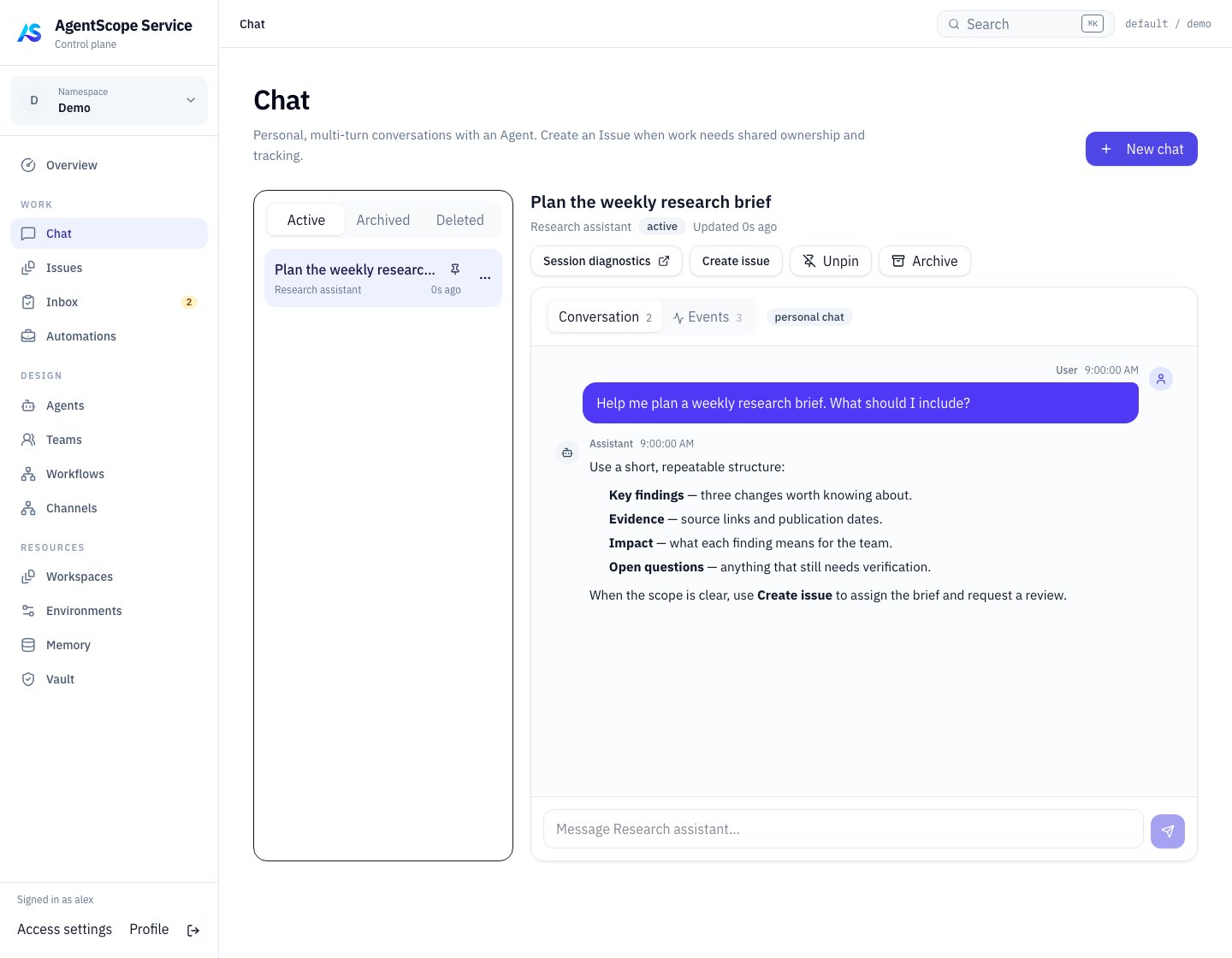 Use the list on the left to reopen conversations. Read replies in **Conversation** and inspect execution events in **Events**. Use **Create issue** at the top right when the discussion is ready for an owner, a deliverable and acceptance criteria.
### Start a conversation
1. Open **WORK → Chat** and select **New chat**.
2. Choose an Agent. The picker reflects conversation availability; capability messages explain why a runtime cannot currently participate.
3. Send a small request such as “Describe your responsibilities before changing any files.”
4. Continue in the same Chat. Refresh and reopen it from the list to confirm that history is available.
The Agent uses its assigned execution environment. A path on your browser's computer is not automatically accessible to the Agent. Put required material in a Workspace the Agent can access.
### Follow execution
The conversation displays replies and tool events supplied by the runtime. For a confirmation request, review the operation and its arguments before deciding. If streaming disconnects, reopen the existing Chat and check its state before sending the same work again.
A Chat is the user conversation; a Session holds its runtime context. Operators can use Session diagnostics when needed. Conversation persistence, recovery and tool confirmation depend on the selected Agent's capabilities.
### Turn a discussion into an Issue
Select **Create issue**, review the suggested title and description, and add the objective, deliverables and acceptance requirements. Choose an owner and sharing scope before creating it. The Issue records its Chat source; write the relevant conclusions into the description rather than assuming that collaborators can read the entire private conversation.
For example, after discussing release-note structure, create an Issue with the input versions, expected output file and fact-checking requirements.
### Organize history
| Action | Effect |
| - | - |
| Pin / Unpin | Keep a frequent conversation easy to find |
| Archive | Move it to Archived; restore it to continue |
| Delete chat | Move it to Deleted; Restore chat remains available and execution diagnostics are retained |
Archiving or deleting history is not a cancellation operation for running work.
### If no reply appears
Check Agent availability, model credentials, the Environment and Runtime Host status. Check your account and scope when an existing Chat is inaccessible. Use a new Chat to verify configuration changes. Give an administrator the Chat ID, time and visible error without sharing credentials.
Next: [Team collaboration](/v2/en/service/team-collaboration) · [Execution reference](/v2/en/service/sessions).
The [engineering case](/v2/en/service/cases/sdlc-team) ties GitHub requirements, base branch, tests, PR, and merge scope to one work item.
This documentation is built and hosted on [Mintlify](https://mintlify.com), a developer documentation platform.
Use the list on the left to reopen conversations. Read replies in **Conversation** and inspect execution events in **Events**. Use **Create issue** at the top right when the discussion is ready for an owner, a deliverable and acceptance criteria.
### Start a conversation
1. Open **WORK → Chat** and select **New chat**.
2. Choose an Agent. The picker reflects conversation availability; capability messages explain why a runtime cannot currently participate.
3. Send a small request such as “Describe your responsibilities before changing any files.”
4. Continue in the same Chat. Refresh and reopen it from the list to confirm that history is available.
The Agent uses its assigned execution environment. A path on your browser's computer is not automatically accessible to the Agent. Put required material in a Workspace the Agent can access.
### Follow execution
The conversation displays replies and tool events supplied by the runtime. For a confirmation request, review the operation and its arguments before deciding. If streaming disconnects, reopen the existing Chat and check its state before sending the same work again.
A Chat is the user conversation; a Session holds its runtime context. Operators can use Session diagnostics when needed. Conversation persistence, recovery and tool confirmation depend on the selected Agent's capabilities.
### Turn a discussion into an Issue
Select **Create issue**, review the suggested title and description, and add the objective, deliverables and acceptance requirements. Choose an owner and sharing scope before creating it. The Issue records its Chat source; write the relevant conclusions into the description rather than assuming that collaborators can read the entire private conversation.
For example, after discussing release-note structure, create an Issue with the input versions, expected output file and fact-checking requirements.
### Organize history
| Action | Effect |
| - | - |
| Pin / Unpin | Keep a frequent conversation easy to find |
| Archive | Move it to Archived; restore it to continue |
| Delete chat | Move it to Deleted; Restore chat remains available and execution diagnostics are retained |
Archiving or deleting history is not a cancellation operation for running work.
### If no reply appears
Check Agent availability, model credentials, the Environment and Runtime Host status. Check your account and scope when an existing Chat is inaccessible. Use a new Chat to verify configuration changes. Give an administrator the Chat ID, time and visible error without sharing credentials.
Next: [Team collaboration](/v2/en/service/team-collaboration) · [Execution reference](/v2/en/service/sessions).
The [engineering case](/v2/en/service/cases/sdlc-team) ties GitHub requirements, base branch, tests, PR, and merge scope to one work item.
This documentation is built and hosted on [Mintlify](https://mintlify.com), a developer documentation platform.